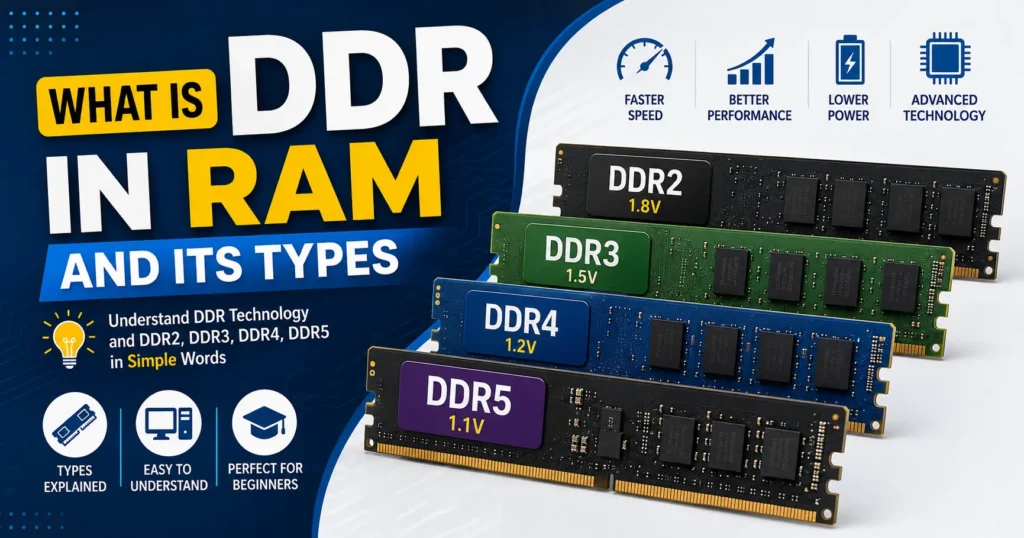

If you have ever seen RAM labeled DDR3, DDR4, or DDR5 and wondered what those numbers actually mean, the answer starts with DDR. DDR is the technology used by modern RAM to transfer data faster and more efficiently between memory and the processor.
For beginners, the easiest way to understand it is this: RAM is your computer’s short-term working space, while DDR describes the generation and data-transfer technology used by that RAM.
In this guide, we’ll explain DDR in simple terms, look at the major types of RAM, compare DDR2, DDR3, DDR4, and DDR5, and show you how to identify which RAM your computer needs.
What Is RAM?
RAM (Random Access Memory) is temporary memory used by your computer to store data and programs that are currently being used.
For example, when you open Chrome, Word, or a game, the computer loads the data it needs into RAM so the CPU can access it quickly.
Think of it like a study table:
- Your SSD/HDD is like a cupboard where you keep your books.
- RAM is the table where you keep the books you are currently using.
- The CPU is you, reading and working with those books.
A larger RAM capacity gives you more working space, while faster RAM can transfer data more quickly.
What Does DDR Mean in RAM?
DDR stands for Double Data Rate.
DDR memory can transfer data twice during each clock cycle—once on the rising edge and once on the falling edge of the clock signal.
This allows DDR RAM to provide higher data-transfer rates without simply doubling the physical clock frequency.
You will commonly see RAM described as:
- DDR2
- DDR3
- DDR4
- DDR5
The number represents the generation of DDR technology.
So, DDR4 is newer than DDR3, and DDR5 is newer than DDR4.
Important: A newer DDR generation is not automatically compatible with a motherboard designed for an older generation.
Types of RAM: Where Does DDR Fit In?
There are several ways to classify RAM types.
The two broad categories are:
1. SRAM
SRAM (Static Random Access Memory) is very fast and does not need to be constantly refreshed like DRAM.
It is commonly used for CPU cache memory.
Examples include:
- L1 cache
- L2 cache
- L3 cache
SRAM is fast but expensive and takes more physical space.
2. DRAM
DRAM (Dynamic Random Access Memory) is the type of memory commonly used as the main system RAM in desktop computers and laptops.
DDR generations such as DDR3, DDR4, and DDR5 are types of SDRAM technology based on DRAM.
For a normal PC or laptop user, when someone says “RAM,” they usually mean this type of system memory.
What Are the Different DDR RAM Types?
The major DDR generations you are likely to encounter are:
- DDR
- DDR2
- DDR3
- DDR4
- DDR5
Each generation brought improvements in speed, power efficiency, and memory architecture.
DDR RAM
The original DDR technology was introduced as an improvement over older SDRAM.
It could transfer data twice per clock cycle, which gave it better performance than traditional SDRAM.
Today, original DDR RAM is considered obsolete and is rarely found in modern computers.
DDR2 RAM
DDR2 improved upon the original DDR generation with higher transfer rates and lower operating voltage.
Typical DDR2 modules operate at around 1.8V.
You may still find DDR2 in very old desktop PCs and laptops, but it is no longer suitable for modern systems.
DDR3 RAM
DDR3 became widely used in computers during the late 2000s and 2010s.
Typical DDR3 memory operates at around 1.5V, while DDR3L is a lower-voltage variant generally operating around 1.35V.
DDR3 offered a significant improvement in speed and efficiency compared with DDR2.
It can still be found in many older laptops and desktop computers.
DDR4 RAM
DDR4 became the standard for many PCs and laptops for several years.
Typical DDR4 memory operates at around 1.2V.
Compared with DDR3, DDR4 generally offers:
- Higher data-transfer rates
- Lower operating voltage
- Greater memory capacity options
- Improved overall memory architecture
DDR4 is still widely used in many computers.
DDR5 RAM
DDR5 is the newer mainstream generation of DDR memory.
It provides significantly higher data-transfer rates and supports higher memory capacities than previous generations.
DDR5 also introduces architectural changes, including having two independent 32-bit subchannels per memory module instead of the traditional single 64-bit channel arrangement.
DDR5 generally operates at around 1.1V.
It is commonly found in newer desktop PCs and laptops.
DDR2 vs DDR3 vs DDR4 vs DDR5
Here is a simple comparison of the major generations:
| RAM Type | Approx. Standard Voltage | General Era | Relative Performance |
|---|---|---|---|
| DDR | ~2.5V | Older systems | Basic |
| DDR2 | ~1.8V | Older PCs | Better than DDR |
| DDR3 | ~1.5V | Older/mid-generation PCs | Faster and more efficient |
| DDR3L | ~1.35V | Selected laptops/PCs | Lower-voltage DDR3 |
| DDR4 | ~1.2V | Many modern PCs | Faster and more efficient |
| DDR5 | ~1.1V | Newer PCs | Highest performance of these generations |
Note: Actual supported speeds and voltages can vary by module, motherboard, and memory configuration. The table is intended as a general comparison rather than a compatibility specification.
Why Can’t You Put DDR4 RAM in a DDR3 Motherboard?
This is one of the most common questions when upgrading a computer.
DDR3 and DDR4 are physically and electrically different.
Their:
- Notch positions are different
- Pin arrangements are different
- Electrical characteristics are different
- Memory controllers have different requirements
Because of this, you cannot simply insert a DDR4 module into a DDR3 motherboard.
The same rule applies to other DDR generations.
Simple rule
DDR3 motherboard → DDR3 RAM
DDR4 motherboard → DDR4 RAM
DDR5 motherboard → DDR5 RAM
Don’t buy RAM based only on its capacity or speed. Always check motherboard compatibility first.
DDR RAM Speed Explained
You may see RAM advertised with specifications such as:
DDR4-3200
The “3200” refers to the memory’s approximate data-transfer rate of 3200 MT/s (million transfers per second).
A common mistake is to call this a 3200 MHz clock speed.
Technically, 3200 MT/s is the transfer rate, while the actual memory clock is lower because DDR transfers data twice per clock cycle.
For example:
DDR4-3200 → 3200 MT/s
The underlying clock is approximately:
3200 ÷ 2 = 1600 MHz
This distinction becomes useful when comparing RAM specifications.
RAM Capacity vs RAM Speed
When choosing RAM, two specifications are often confused:
RAM Capacity
Capacity tells you how much data the RAM can hold at once.
Examples:
- 4GB
- 8GB
- 16GB
- 32GB
- 64GB
For example, moving from 8GB to 16GB can make a noticeable difference when running several applications simultaneously.
RAM Speed
Speed tells you how quickly the memory can transfer data.
Examples:
- DDR4-2400
- DDR4-2666
- DDR4-3200
- DDR5-4800
- DDR5-5600
A computer with 16GB RAM isn’t necessarily faster than one with 8GB just because it has more RAM. Capacity and memory speed solve different problems.
What Is Dual-Channel RAM?
Modern computers can often use two memory channels to increase available memory bandwidth.
For example, if a motherboard supports dual-channel operation, installing two compatible RAM modules can provide better memory bandwidth than using only one module.
A common configuration is:
2 × 8GB = 16GB
instead of:
1 × 16GB = 16GB
The total capacity is the same, but the two-module configuration may allow the system to use dual-channel memory, depending on the platform and configuration.
Pro Tip
When upgrading RAM, check the motherboard’s recommended slots. On many desktop motherboards, the correct configuration is not simply “put the sticks next to each other.”
The motherboard manual usually shows the preferred slots.
How to Check Which RAM Your Computer Uses
Before purchasing RAM, identify the existing memory type.
Method 1: Check Windows Task Manager
In Windows 10 or Windows 11:
- Press Ctrl + Shift + Esc.
- Open Performance.
- Select Memory.
- Check the installed memory and other available information.
Depending on the computer, Task Manager may show the RAM speed, slots used, and other details.
Method 2: Use CPU-Z
A popular diagnostic utility such as CPU-Z can provide detailed information about your memory.
Look at the Memory and SPD sections to identify details such as:
- Memory type
- Frequency
- Module size
- Manufacturer
- Timings
- Available memory profiles
Method 3: Check the RAM Stick
If you are comfortable opening a desktop PC or laptop, check the label on the RAM module.
You may find information such as:
8GB DDR4 3200
This tells you:
- Capacity → 8GB
- Generation → DDR4
- Transfer rate → 3200 MT/s
Can DDR3 and DDR4 Work Together?
No, DDR3 and DDR4 cannot normally be used together.
A motherboard is designed for a specific memory generation.
Even if you have:
- 8GB DDR3
- 8GB DDR4
you cannot combine them simply to get 16GB.
You need a motherboard and memory modules that belong to the same supported generation.
Which RAM Is Better: DDR3, DDR4, or DDR5?
If you are comparing the generations purely by technology:
DDR5 > DDR4 > DDR3 > DDR2
But that does not mean you should immediately replace DDR4 with DDR5.
Your motherboard and CPU determine which memory generation you can use.
For example, if your computer supports DDR4, buying DDR5 RAM will not make it compatible. A DDR5 upgrade generally requires a compatible motherboard and processor platform.
Common Mistakes When Buying RAM
1. Buying based only on GB
Don’t assume that any 16GB RAM stick will work in your computer.
Check:
DDR generation + form factor + supported speed + capacity + motherboard compatibility
2. Confusing desktop and laptop RAM
Desktop RAM is generally DIMM, while laptop RAM is generally SO-DIMM.
They are physically different sizes.
3. Assuming higher speed always works
A motherboard may support a particular maximum memory speed or may run a faster module at a lower supported speed.
Always check the motherboard or laptop specifications.
4. Mixing incompatible generations
DDR3, DDR4, and DDR5 are not interchangeable.
5. Ignoring motherboard limits
A motherboard may have limits on:
- Maximum RAM capacity
- Number of modules
- Supported memory generation
- Supported speeds
- Module configuration
Frequently Asked Questions
Is DDR a type of RAM?
Yes, but more precisely, DDR refers to a data-transfer technology used in DRAM-based system memory. DDR generations include DDR2, DDR3, DDR4, and DDR5.
Which DDR RAM is the fastest?
Among the generations discussed here, DDR5 is the newest and offers higher standard data-transfer rates than DDR4, DDR3, and DDR2.
Is DDR4 RAM better than DDR3?
Generally, yes. DDR4 offers higher transfer rates, lower operating voltage, and newer memory technology. However, a DDR3 system cannot use DDR4 without a compatible motherboard and processor platform.
Can I upgrade DDR3 to DDR4?
Not by simply replacing the RAM stick. You generally need a motherboard and CPU platform that supports DDR4.
Is 16GB RAM enough?
For many everyday tasks, 16GB is a comfortable amount of RAM. The ideal amount depends on what you do—basic office work, programming, gaming, video editing, and professional applications have different requirements.
What is DDR5-5600?
DDR5-5600 refers to DDR5 memory with a rated data-transfer rate of 5600 MT/s.
Final Takeaway
The easiest way to remember RAM types is:
RAM → DRAM → DDR → DDR2 / DDR3 / DDR4 / DDR5
DDR generations mainly represent different generations of memory technology, with newer generations generally providing higher transfer rates, improved efficiency, and newer architectural features.
If you’re planning a RAM upgrade, don’t choose the RAM based only on “8GB,” “16GB,” or “3200.” First identify your motherboard or laptop model, check the supported DDR generation and maximum capacity, and then choose a compatible module.
That one check can save you from buying RAM that physically or electrically won’t work in your computer.